


How To Create Call Ads in Google Ads (Discontinuing in February 2027)
Learn how to create Call Only Ads and generate call leads using Call Ads (formerly known as Call Only Ads)

Important Update: Call-Only Ads Deprecation Notice
Google Ads Call-Only Ads Are Being Deprecated in Feb 2027
Google is discontinuing Call-Only Ads in February 2027. If you’re currently using call-only campaigns or planning to set them up, here’s what you need to know:
- Timeline: February 2026 All options to create new call ads will be removed. And Call-only ads will no longer be supported and get any impressions after February 2027.
- Google recommends migrating to Responsive Search Ads with Call Assets for phone call campaigns
- What this means: This article is no longer useful. The functionality of call ads isn’t going away- you’ll still be able to drive phone calls, just using a different ad format
Create Call Ads in Google Ads – (Discontinuing in February 2027)
A guide to create call ads formally known as Call Only Ads in GoogleAds.
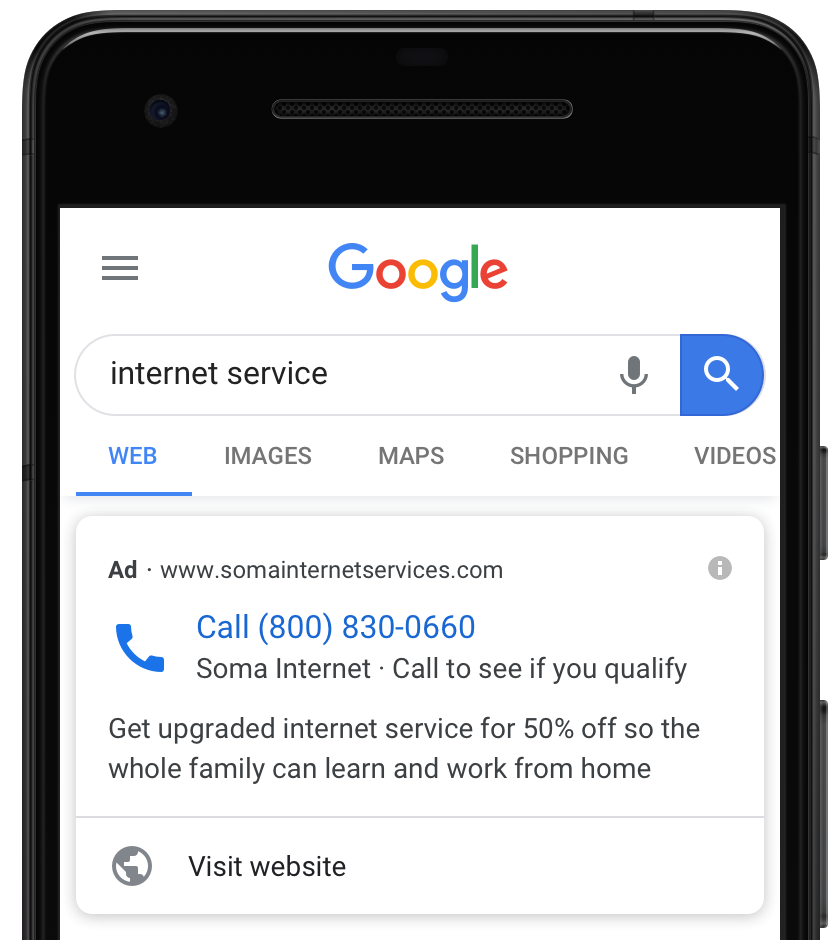
Google Ads updated its “Call Only Ads” to simply “Call Ads” with an amazing feature in April 2020. In this new update, Call Ads now offers advertisers to include a link (Visit website) in the Ad Copy. Which will lead a visitor/user to the advertiser’s website or landing page.
What are Call Ads in Google Ads?
Call Ads are one of the ad types in Google Ads, which you can use to generate phone call leads for your business.
In simple words it’s like a click-to-call button on the website, once clicked, it will open the user’s phone dialer to call your business.
“Call ads are designed to encourage people to call your business, and can appear only on devices that make phone calls. When a potential customer clicks your ad, the ad places a call to you from their device.”
Google Ads
How Are New Call Ads Different?
In Call Only Ads (previous version), it was designed to single clickable heading to call businesses. There was no option for the user to visit the advertiser’s website.
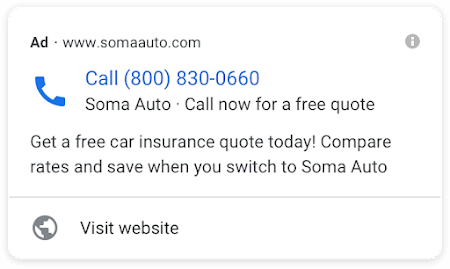
But in this new update of Call Ads, visitors can visit the advertiser’s website or landing page.
It will prevent some invalid (not sure) but those users who think that if they click on ads heading will them to a website will get a clear “Visit Website” option.
As shown in the image:
Update existing Call-Only Ads to Call Ads
If you have created Call Only Ads previously and wanted to update to a new one, then it’s really simple.
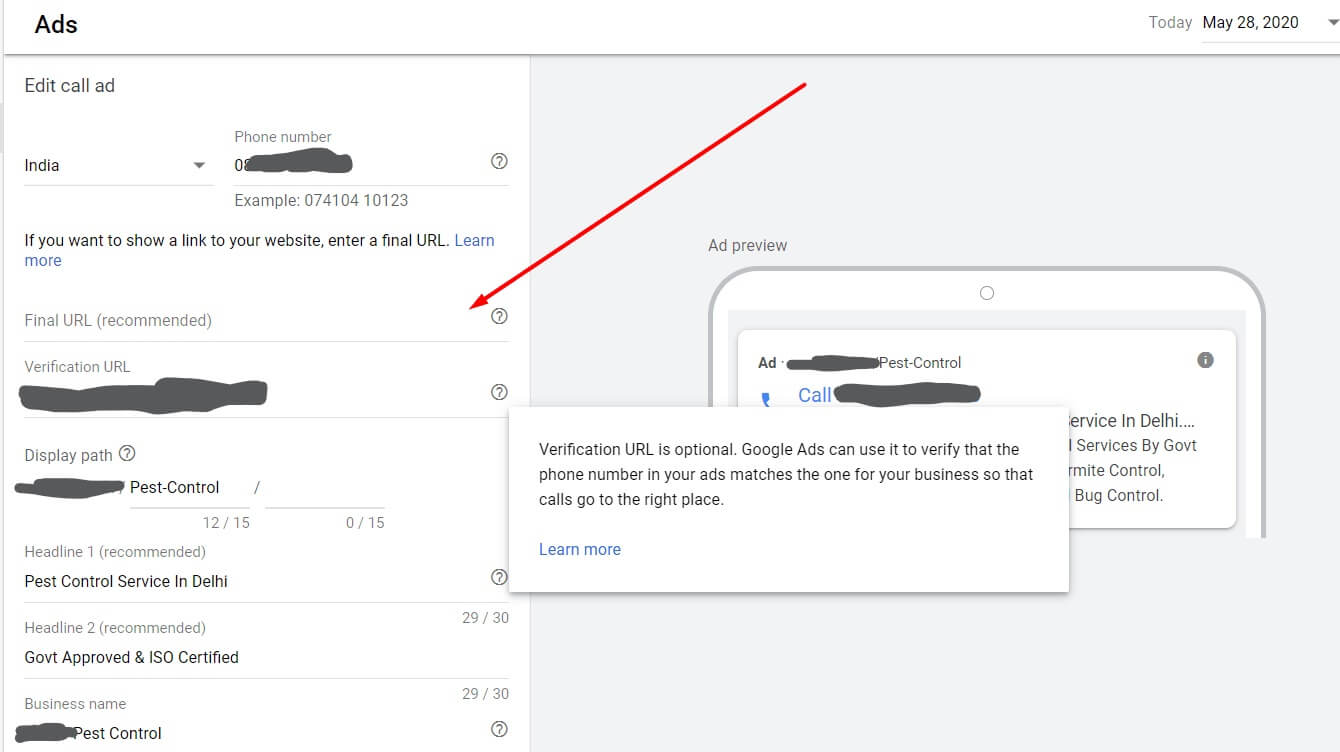
Simply edit the previous ads and provide the Final URL (recommended)
Create New Call Ads:
Creating new Google Call Ads is really Simple.
Step 1:
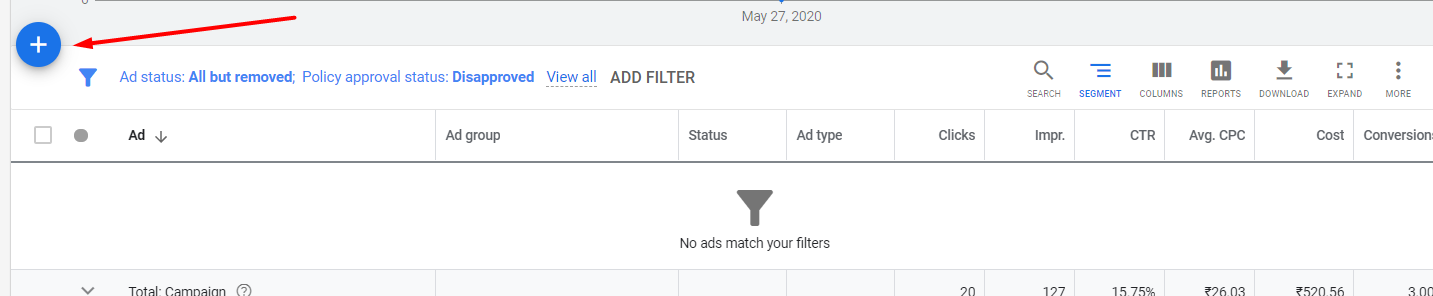
Go to the Campaign and then the ad group where you want to create call ads. then click on the blue plus(+) icon to add new ads type:
Step 2:
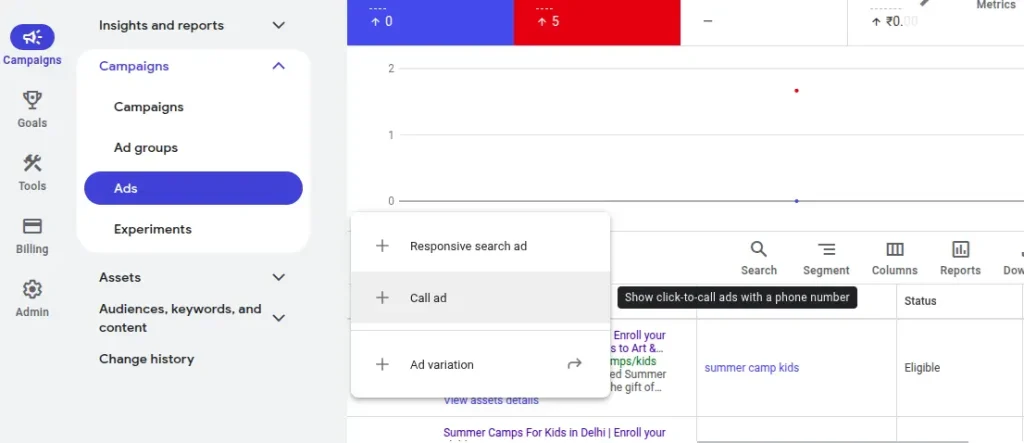
Select “Call ad”
Step 3:
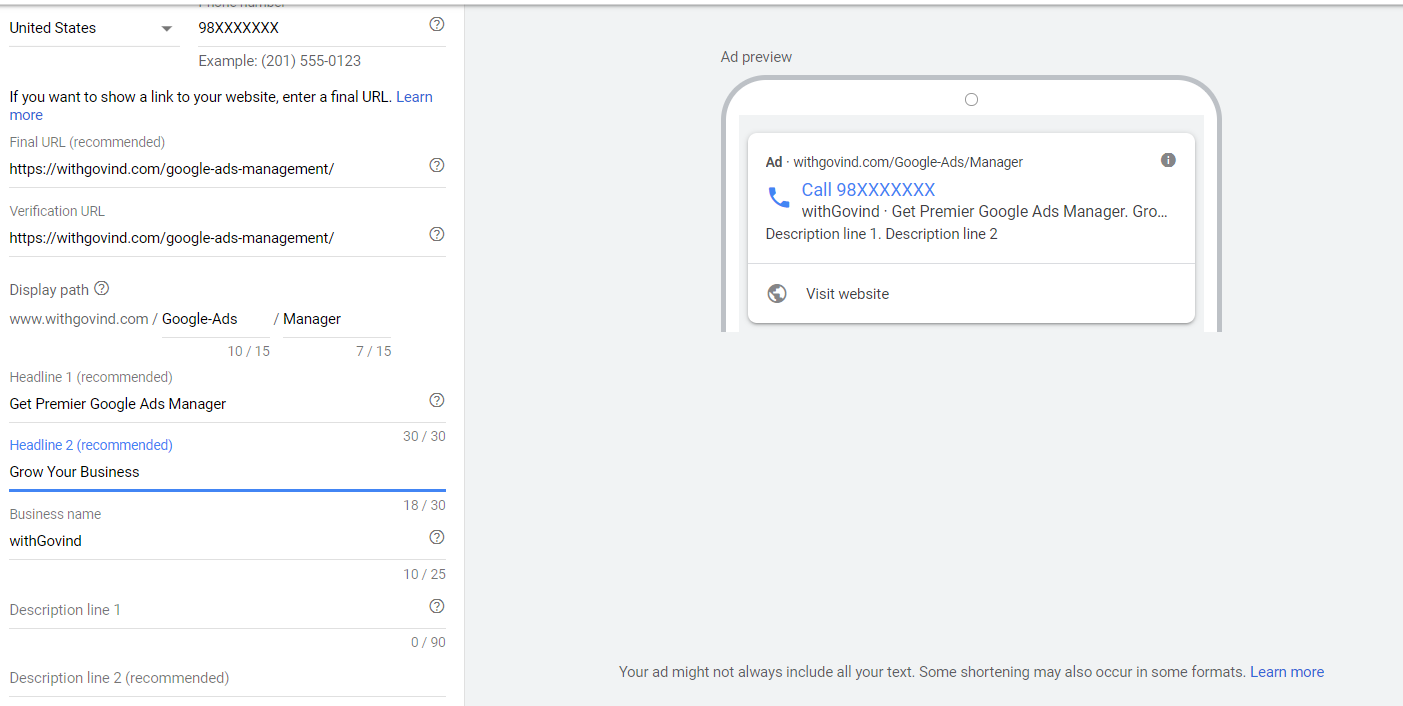
You will get an interface similar to the below image. Now simply put all your information such as Phone number, Business name, Headings, description, etc.
There you go. Congratulations! You are now prepared to go live. Google will start showing your click to call ads once the ad copy is approved.
If you are experiencing difficulty, please let me know in the comment box below. It would be my pleasure to help you.
If you are looking for Google Ads Management Service For Your Business
i required new ads
It is a very good article. Thank you. Can you please help me with my campaign. I am just starting with low budget. Thanks
Hi there! I simply would like to offer you a big thumbs up for your great info you
have here on this post. I am coming back to your web site for more soon.
Thank You so much for your feedback Royal CBD.