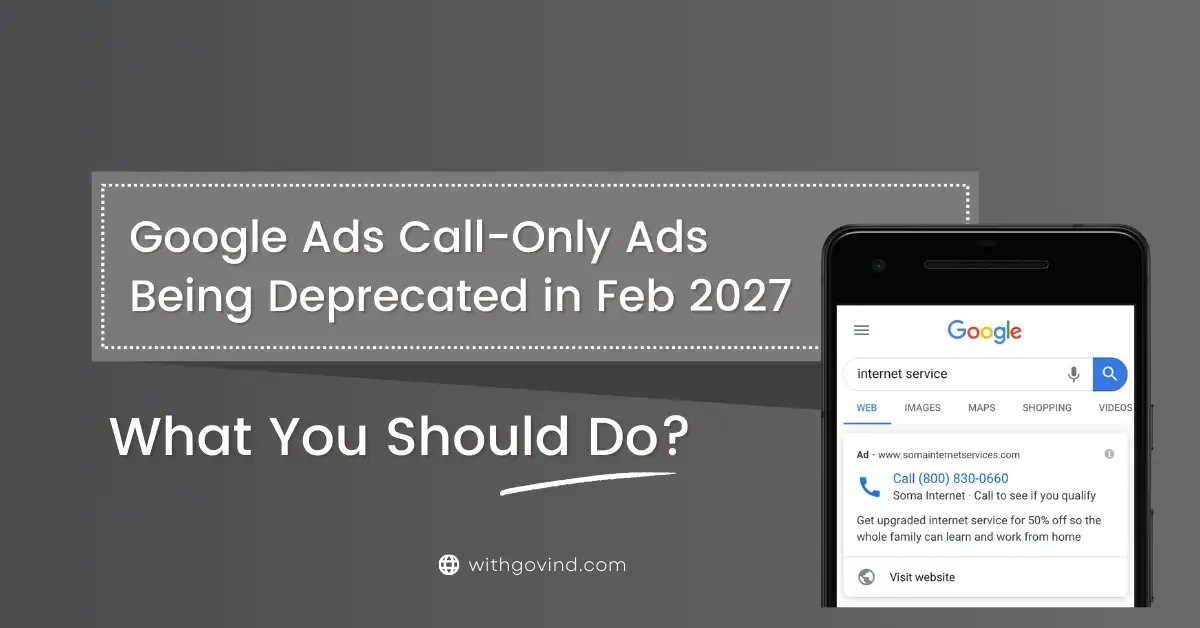
Heads up, PPC folks: Google Ads call-only ads are officially on their way out. Google has confirmed the timeline:
- No new call-only ads can be created starting February 2026
- All existing ones stop getting impressions by February 2027
If you’re still getting solid phone leads from them (like one of my clients who leaned heavily on this format), don’t panic or rush to delete/pause everything right now.
Here’s the practical transition strategy I’ve been using successfully across lead-gen accounts:
Step 1: Don’t panic. Don’t pause/delete them yet. Keep what’s working (for now) + shift to call assets
- Don’t pause or delete high-performing call-only campaigns yet; especially if a client is still getting good calls from Call-Only Ads, let them run..
- Let them run naturally until impressions dry up (they will eventually).
- In the meantime, make sure call assets (previously call extensions) are added to all your Responsive Search Ads (RSAs) in every relevant campaign or account level.
RSAs with call assets let Google mix headlines/descriptions dynamically while still showing the phone number prominently on mobile.
In my case, only one client was heavily dependent on Call-Only Ads. So I’ll pause that campaign only when impressions stop, not before.
Meanwhile, the RSA Search campaigns are already running.
Also, since I already use Call Assets in all RSA ads, there’s no major risk for me.
If you don’t have this setup yet: Simply add Call Assets to your RSA campaigns and start using them now.
Step 2: Use call bid adjustments to push calls harder
- Go to your campaign settings → Advanced bid adjustments → Calls.(see screenshot below)
- Increase your bid adjustment up by +15-20% (I usually starts with 15-20% on lead-focused accounts).
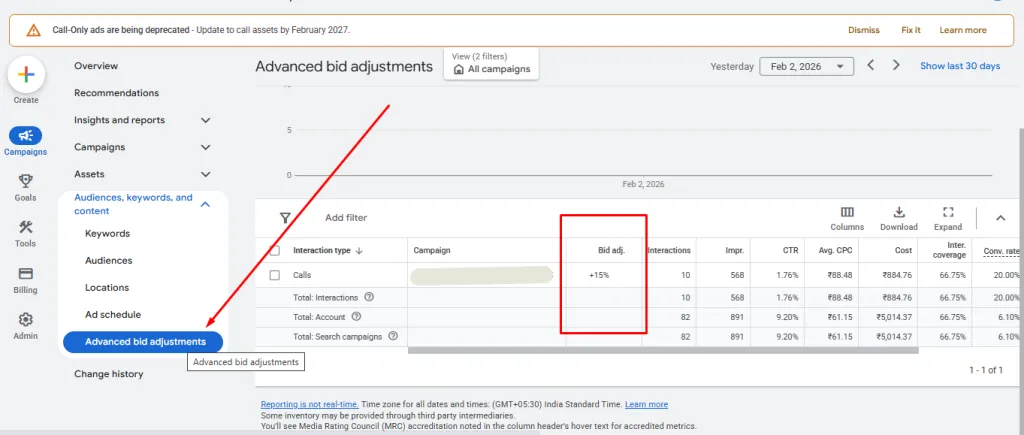
This tells Google’s algorithm to prioritize showing the call button more aggressively when it makes sense. It’s one of the quickest ways to maintain (or even boost) call volume during the transition.
Calls aren’t disappearing – they’re just moving into a smarter (which google ads think), more flexible format with RSAs + call assets.
If you’re managing lead-gen campaigns that rely on phone calls, start adding those call assets today. You’ll thank yourself when FEB 2027 rolls around.
That’s it. No overthinking. Prepare early, test in parallel, and let data guide the transition.